Track Your Cross Stitch Patterns Using Adobe Acrobat Reader — For Free
No app subscription needed. If you have a phone or tablet, you already have everything you need.
What is Pattern Keeper and Why Do We Love It?
Pattern Keeper is a dedicated cross stitch app that lets you open your PDF chart, highlight symbols as you go, tick off finished stitches, and even see a progress count. It's genuinely brilliant — especially for large, complex pieces.
The downside? It costs $$$, and it's only available on Android (iOS support has been long-awaited). For casual stitchers or those just getting started, that's a real barrier.
Enter: Adobe Acrobat Reader. It's free, it's on both Android and iOS, and most stitchers already have it on their device.
How to Set It Up: Step by Step
All you need is Adobe Acrobat Reader (free from Google Play or the App Store) and your pattern saved as a PDF on your device. Here's how to get started:
1
Save your PDF pattern to your phone or tablet. Open it in the Adobe Acrobat Reader app. If it doesn't open automatically in Acrobat, tap the file and choose "Open with Adobe Acrobat."
2
Tap the blue pencil/comment icon in the bottom right corner of your screen, then select Comment from the menu. A toolbar will appear at the top with all your marking tools.
3
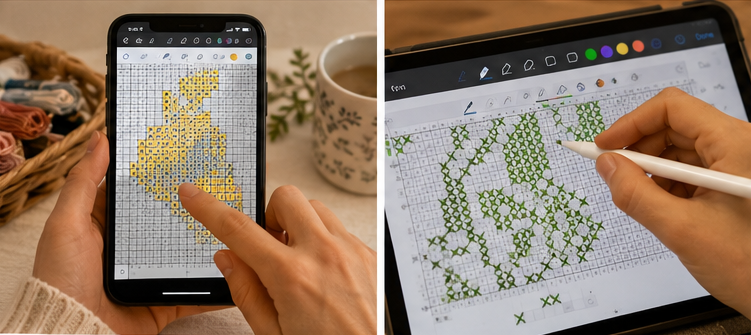
Tap the pencil icon in the top toolbar. Before you start drawing, adjust the line thickness (use a thin line for marking small squares) and the opacity (lower opacity means you can still see the symbol underneath).
4
This is the most important tip. Pinch to zoom in close on the area you're working on before you start marking. The more you zoom, the more accurately you can mark individual squares with your finger or stylus.
5
Draw over each square as you complete it. Use a small cross, a dot, a scribble — whatever feels natural. Your marks save automatically.
6
Your annotations are saved directly in the PDF. When you close and reopen the file, all your progress will still be there.
The Colour System: Your Secret Weapon
Here's where it gets clever. Instead of just marking stitches with one colour, use a colour system — just like Pattern Keeper highlights symbols. Pick a colour code that works for you. Here's a popular one:
You can change your pen colour in the toolbar before drawing. To switch: tap the coloured circle next to your pen tool and pick a new colour. Simple as that.
"If you have to frog and restitch, just choose another colour and draw right over the existing mark."
Pro Tips for a Better Experience
- A cheap stylus makes a huge difference over using your finger — much more precise on small squares.
- Use the comment/sticky note tool to leave reminders like "parking here" or "check thread count" anywhere on the pattern.
- If your PDF pattern is locked and won't let you annotate, run it through the free tool PDF Stitcher first — it unlocks the file in seconds.
- Store your pattern PDF in Google Drive or Dropbox so it syncs across devices. Your annotations travel with the file!
- Tap the three lines at the far right of the drawing toolbar to adjust line thickness on the fly.
- Tablets are easier than phones for this — a larger screen means larger squares to tap.
How Does It Compare to Pattern Keeper?
Let's be honest — Pattern Keeper was built specifically for cross stitchers, and it shows. But for a free tool, Adobe Acrobat Reader holds its own for the basics.
| Feature | Adobe Acrobat (Free) | Pattern Keeper |
|---|---|---|
| Available on Android & iOS | ✓ Yes | Android only (iOS coming) |
| Cost | Free | ~$$$ |
| Mark off completed stitches | ✓ Yes (manually) | ✓ Yes (tap to mark) |
| Use multiple colours | ✓ Yes | ✓ Yes |
| Auto stitch count / progress % | ✗ No | ✓ Yes |
| Symbol search & highlight | ✗ No (manual only) | ✓ Yes |
| Join multi-page patterns seamlessly | ✗ No | ✓ Yes |
| Add sticky notes / reminders | ✓ Yes | Limited |
| Works on locked PDFs (with workaround) | ✓ With PDF Stitcher | ✓ Yes |
The Bottom Line
Adobe Acrobat Reader won't replace Pattern Keeper for a dedicated, full-coverage stitcher working on a 300-colour epic. But for the majority of stitchers — those working on small to medium projects, or those just dipping their toes into digital tracking — it is a completely free, surprisingly capable option that you can start using today.
Give it a try on your next project. Open your pattern, zoom in, pick up your stylus, and start crossing those squares off. You might be surprised how much easier it makes stitching.
Have you tried using Acrobat Reader for your patterns? Drop a comment below and let me know how it goes — or share your own colour system!
Happy stitching!